Step-by-Step Documentation for Setting Up Server-to-Server (S2S) Postback Integration Between
7SearchPPC and FunnelFlux
By integrating 7SearchPPC with FunnelFlux, advertisers of all sizes
and types can track their ad campaign performance in real time and make data-driven advertising decisions.
Use this step-by-step guide to enable S2S Postback integration between the platforms.
Step 1: Make Sure You’ve the Following Things by Your Side!
Before you start the S2S integration process, make sure the pre-integration checklist is completed.
- An active 7SearchPPC Advertiser Account. If not, Register Now!
- An active FunnelFlux Account. If not, proceed to Sign Up!
- Offers to promote.
- An active Affiliate Account. (*If you’re an affiliate marketer.)
- A dedicated Landing Page. (*If required)
Step 2: Log In With Your Credentials to Access Your 7SearchPPC Advertiser Account
Follow these steps to successfully log in to your 7SearchPPC advertiser account.
-
Navigate to the official 7SearchPPC website in your browser:
www.7searchppc.com.
-
Click the Log In button located at the top-right corner of the header.
-
A pop-up will appear on your screen. Select the As an Advertiser box,
and then click on the Continue button.
-
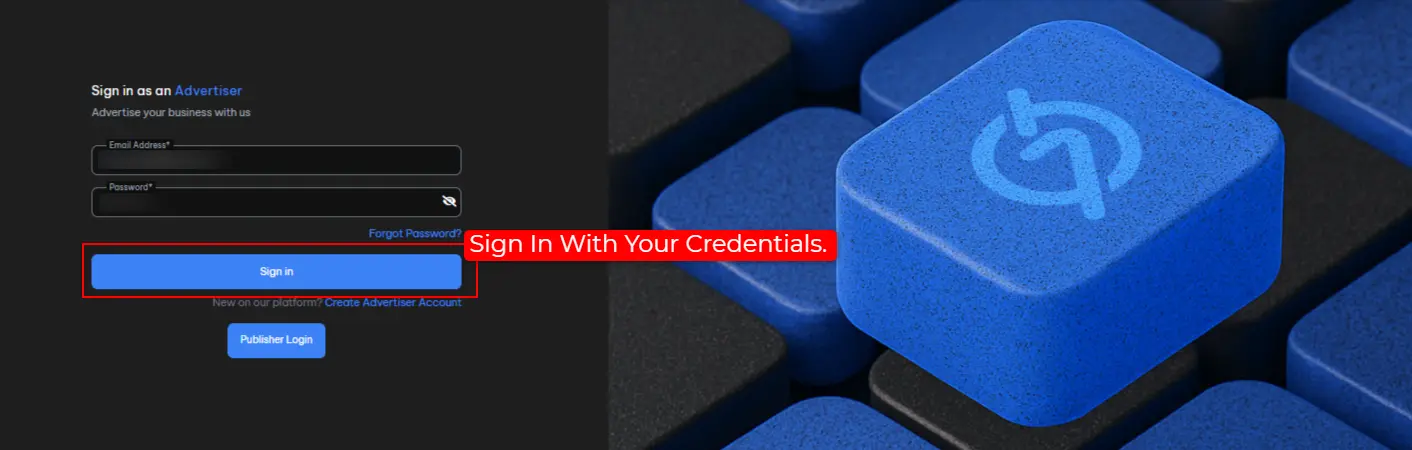
You will be redirected to the login page. Here, you need to
Enter Your Credentials to access your advertiser account.
Step 3: Copy the S2S Postback URL From Your 7SearchPPC Advertiser Account
Once you’ve successfully logged into your 7SearchPPC advertiser account,
you need to copy the S2S Postback URL. To do so, use the following steps.
-
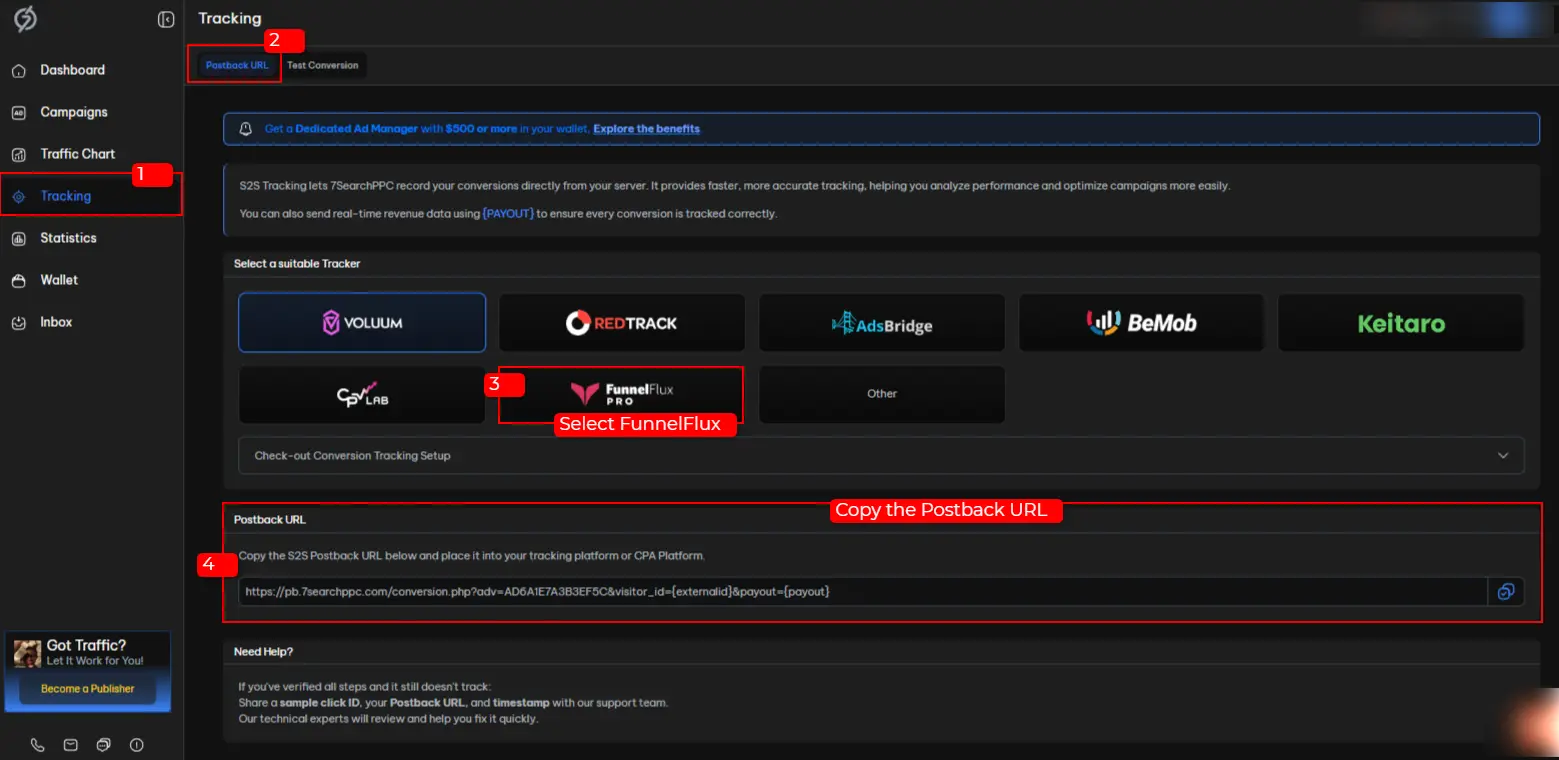
Click the Tracking tab located in the side panel.
-
Select FunnelFlux from the list of available trackers.
-
Scroll down a bit to Access the Postback URL, then copy it for
the next integration step.
Step 4: Set 7SearchPPC as Your Traffic Source in FunnelFlux
Follow these steps to set 7SearchPPC as your traffic source in
FunnelFlux.
-
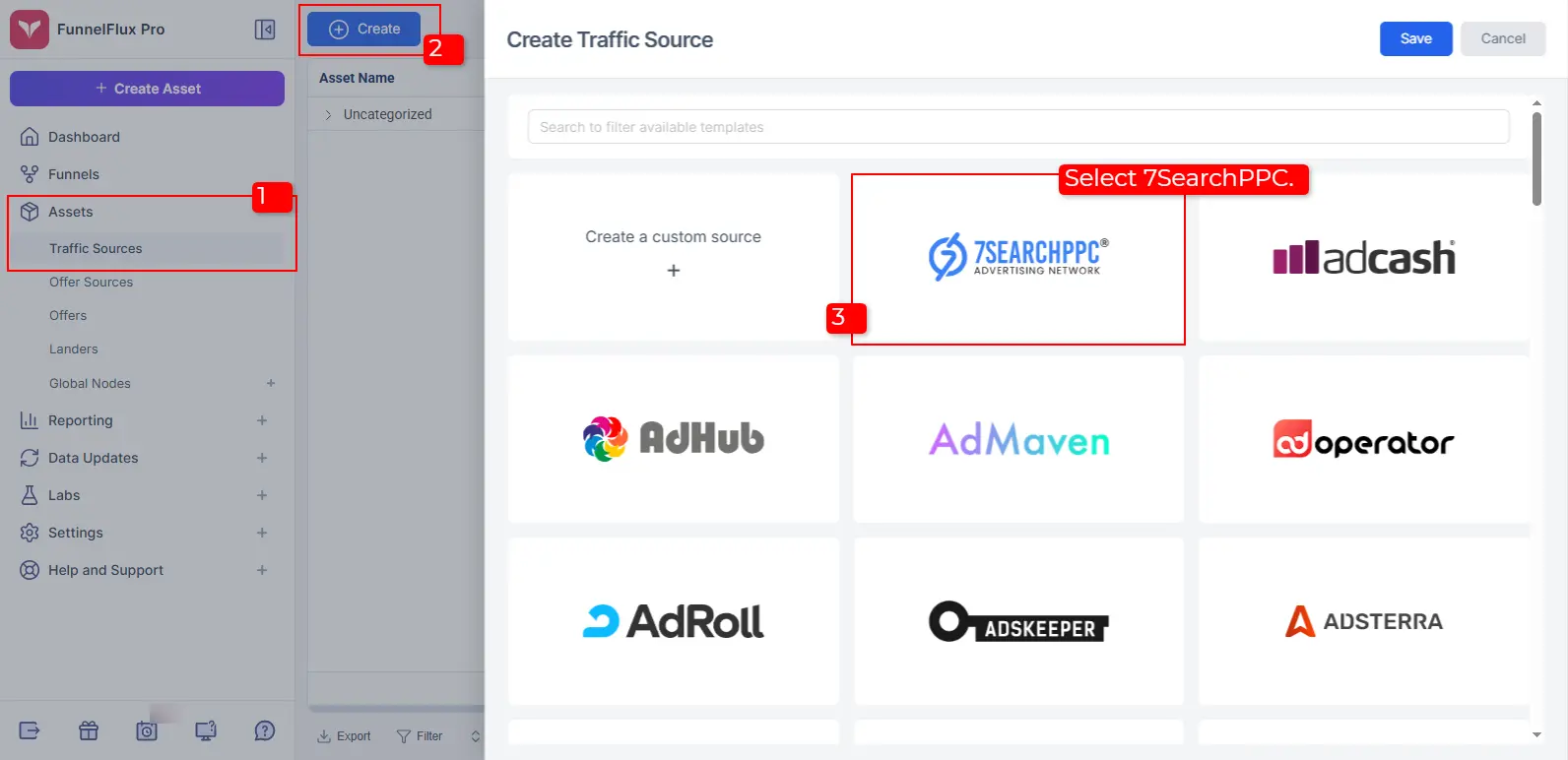
Select Assets, then Traffic Sources from the side navigation.
-
Click on the Create button located at the top-left corner of the screen.
-
Either type 7SearchPPC in the search bar or scroll down to choose it
as your traffic source from the list of available sources.
-
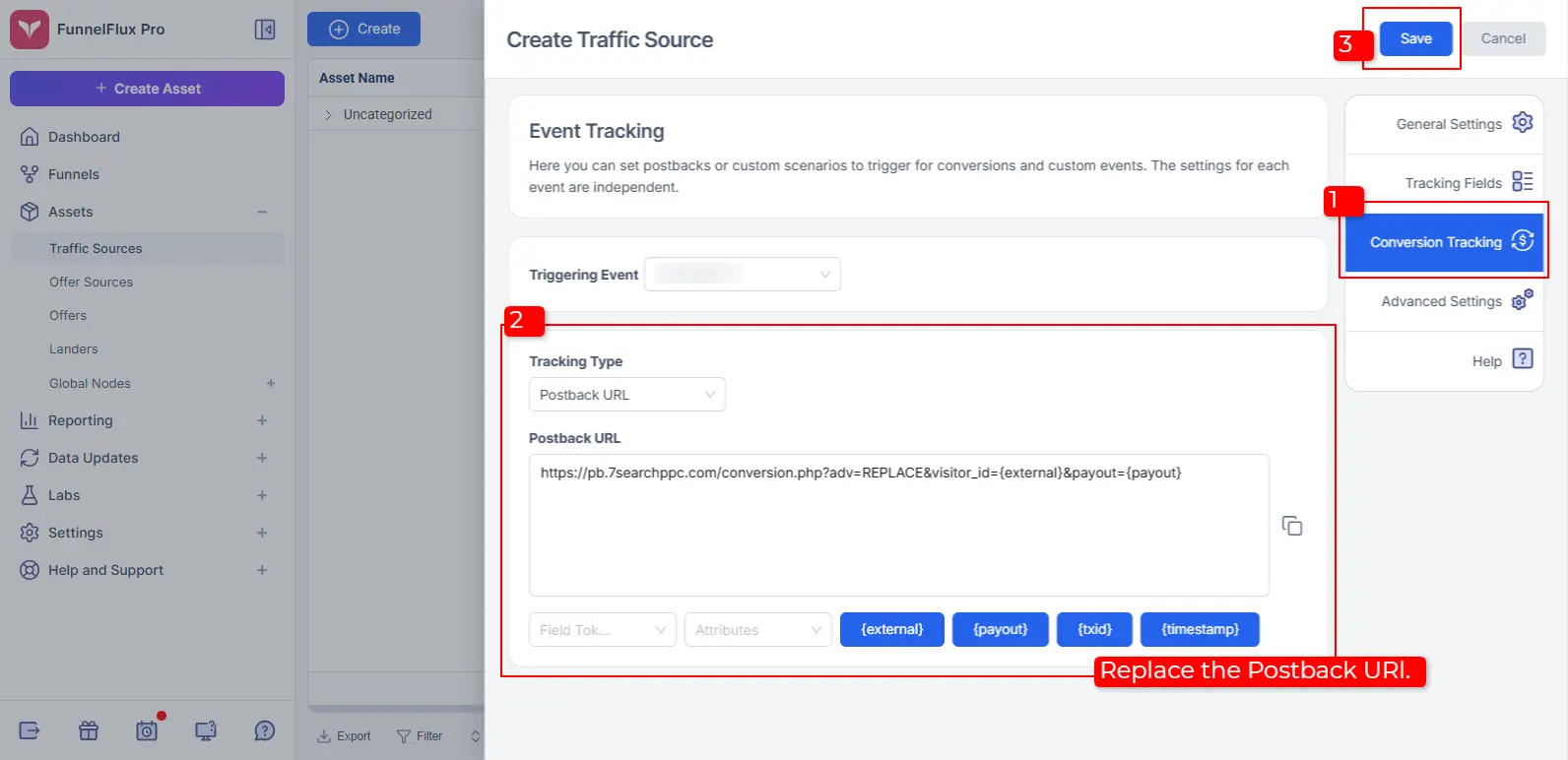
Now, click on the Conversion Tracking tab.
-
In the Tracking Type field, select Postback URL from
the dropdown, and then Replace the Postback URL with the one you copied
from 7SearchPPC.
-
Review the settings, then click the Save button.
Note:
In the Tracking Fields section, standard macros are pre-configured.
If needed, you can add up to 20 additional tracking fields for your campaign.
For a more detailed description, refer to the documentation prepared by
FunnelFlux on setting up a traffic source.
Step 5: Add Your Offer Source, Offer, and Lander in FunnelFlux
To seamlessly integrate your offer source, offer, and lander in
FunnelFlux, follow the steps outlined below.
5.1: Add Your Offer Source
If you’re an affiliate marketer, use the following steps to configure
your offer source.
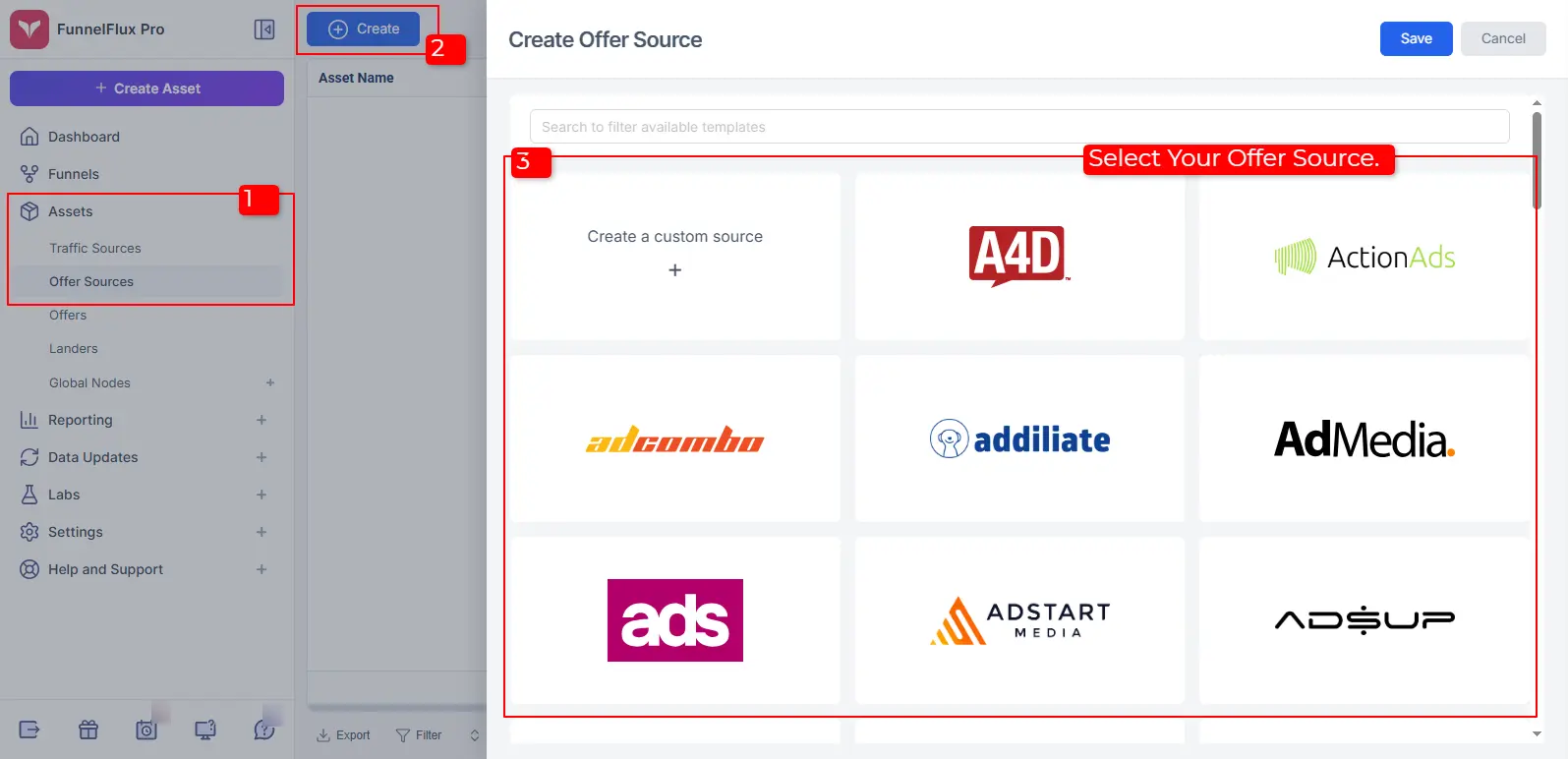
-
Select Assets and then Offer Sources from the side menu.
-
Click on the Create button.
-
Choose your Offer Source.
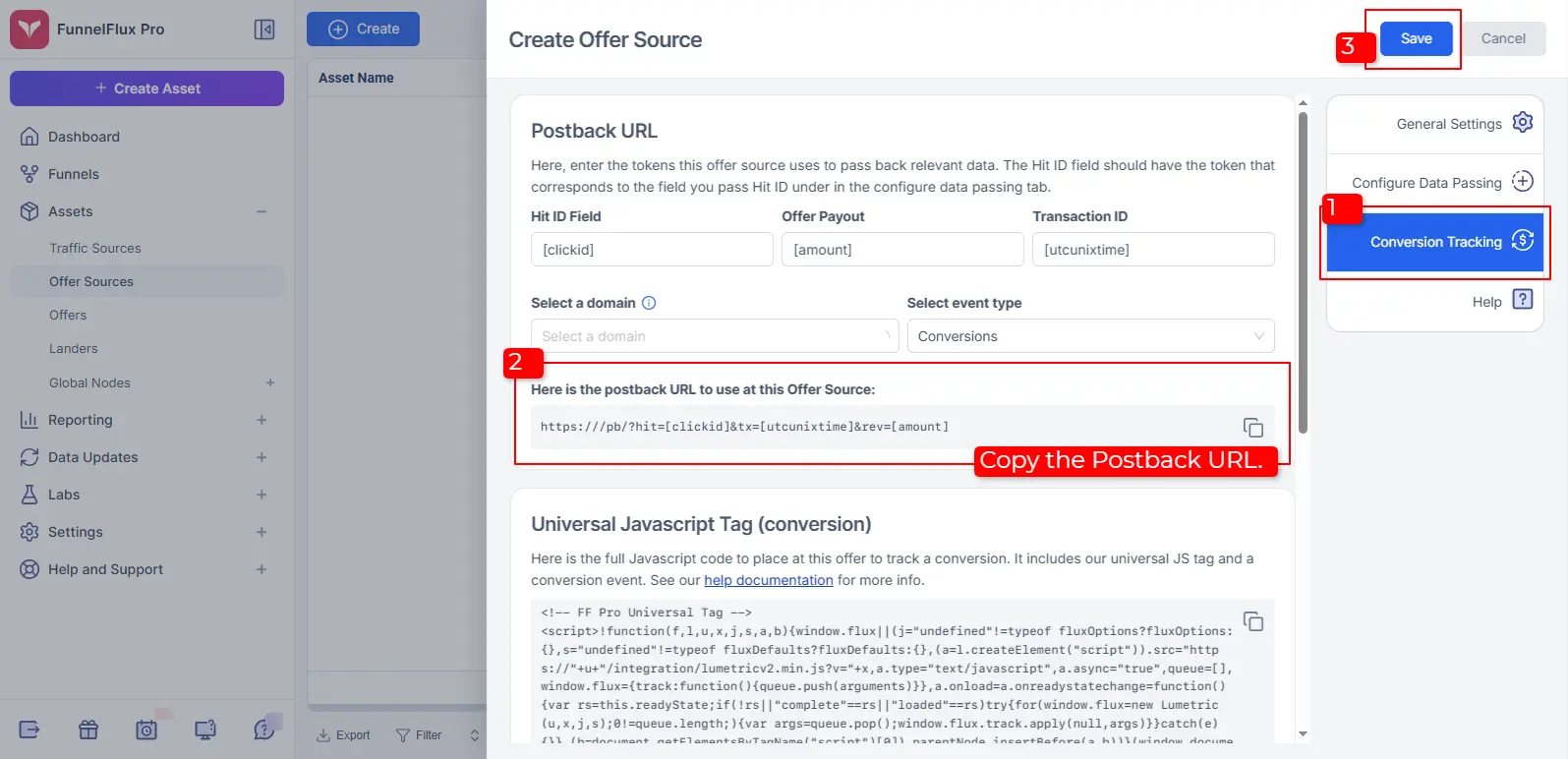
-
Copy the Postback URL from the
Conversion Tracking tab and paste it into your affiliate network.
-
Click on the Save button.
5.2: Add Offers
Follow these steps to add an offer in FunnelFlux.
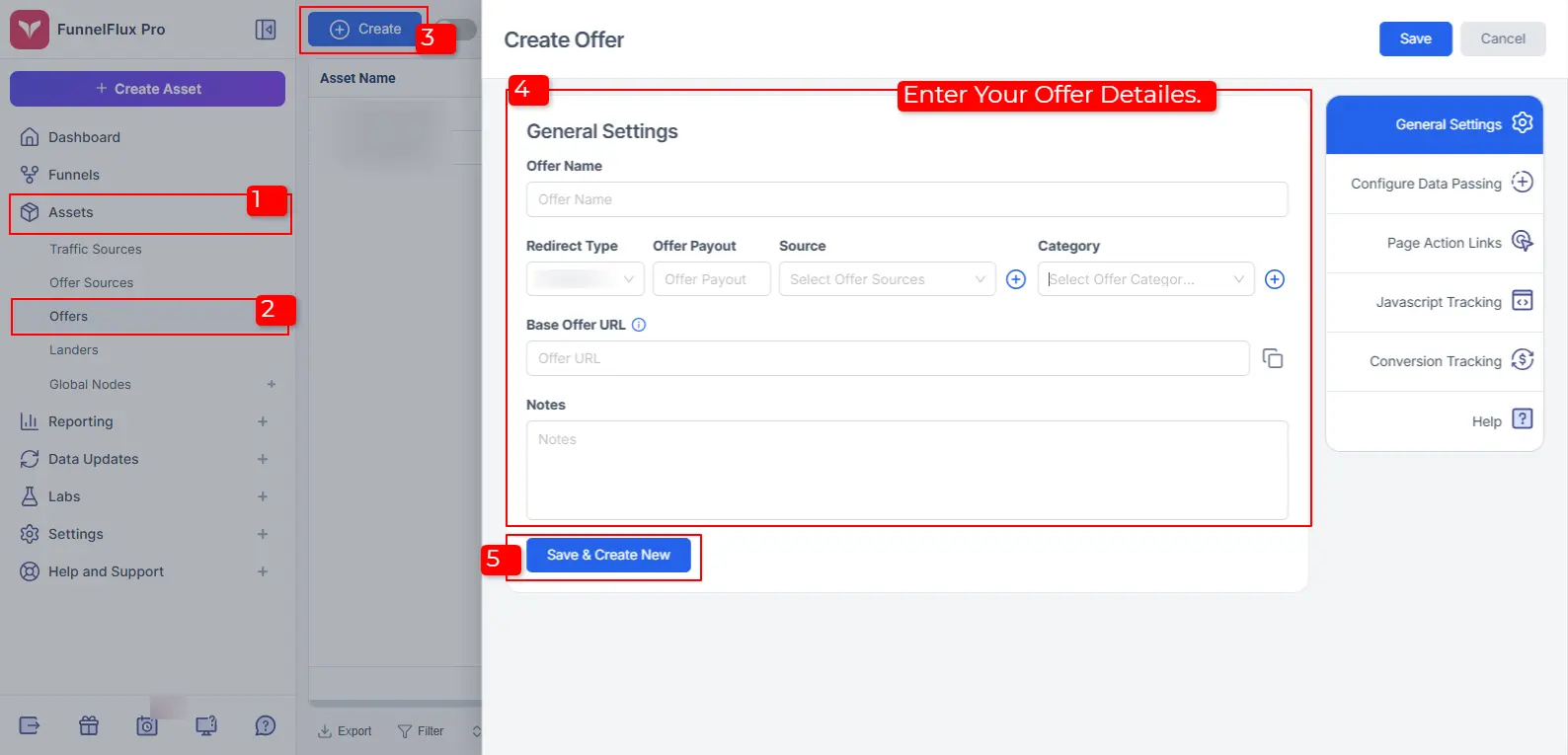
-
Select Assets and then Offers from the sidebar panel.
-
Click on the Create button.
-
Complete the General Settings.
-
Click on the Save and Create New button.
For a detailed instruction on how to add an offer source and offer
in FunnelFlux, refer to their comprehensive guide.
5.3: Set Lander
Follow these steps to create a lander in FunnelFlux.
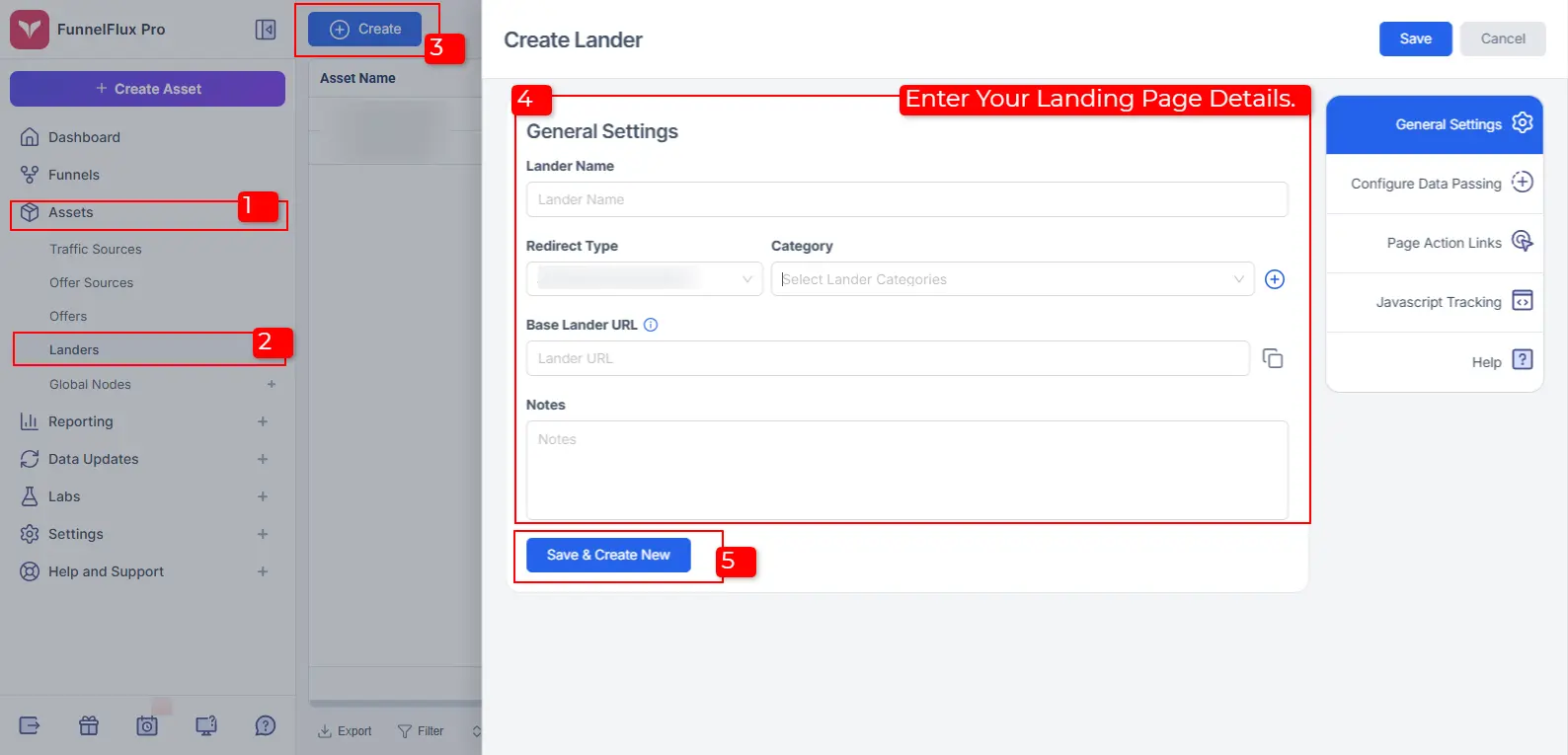
-
Select Assets and then Landers from the sidebar panel.
-
Click on the Create button.
-
Go to General Settings, and enter your details, including
Lander Name, Redirect Type, Base Lander URL, Category, and
Notes.
-
Review, and then click the Save and Create New button.
To learn how to Configure Data Passing, use
Page Action Links, and implement
JavaScript Tracking, refer to the detailed instructions
provided by FunnelFlux.
Step 6: Create Your Campaign on FunnelFlux
Use the following steps to set up and create your campaign in
FunnelFlux.
-
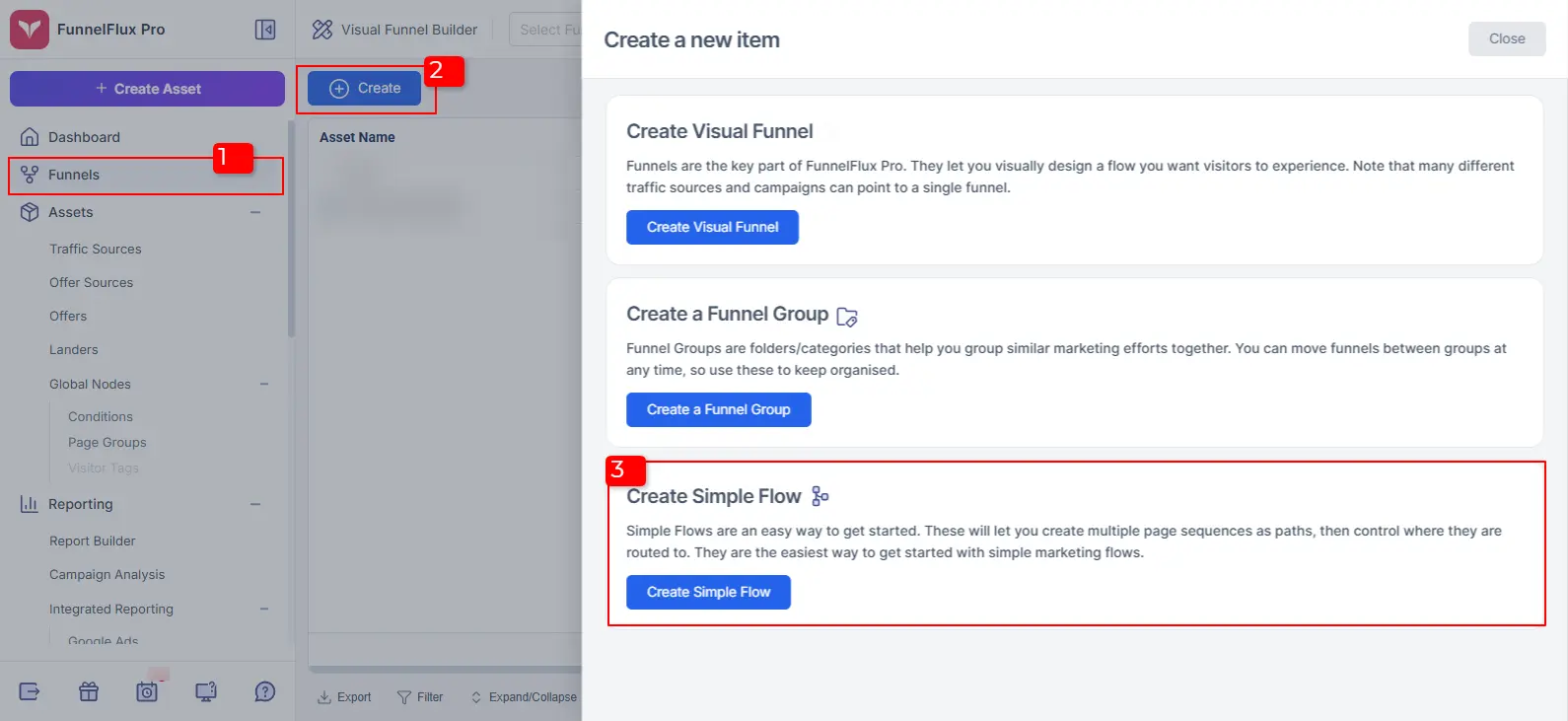
Select Funnels from the side navigational panel.
-
Click on the Create button.
-
In the Create a New Item section, select the
Create Simple Flow option to create your campaign.
-
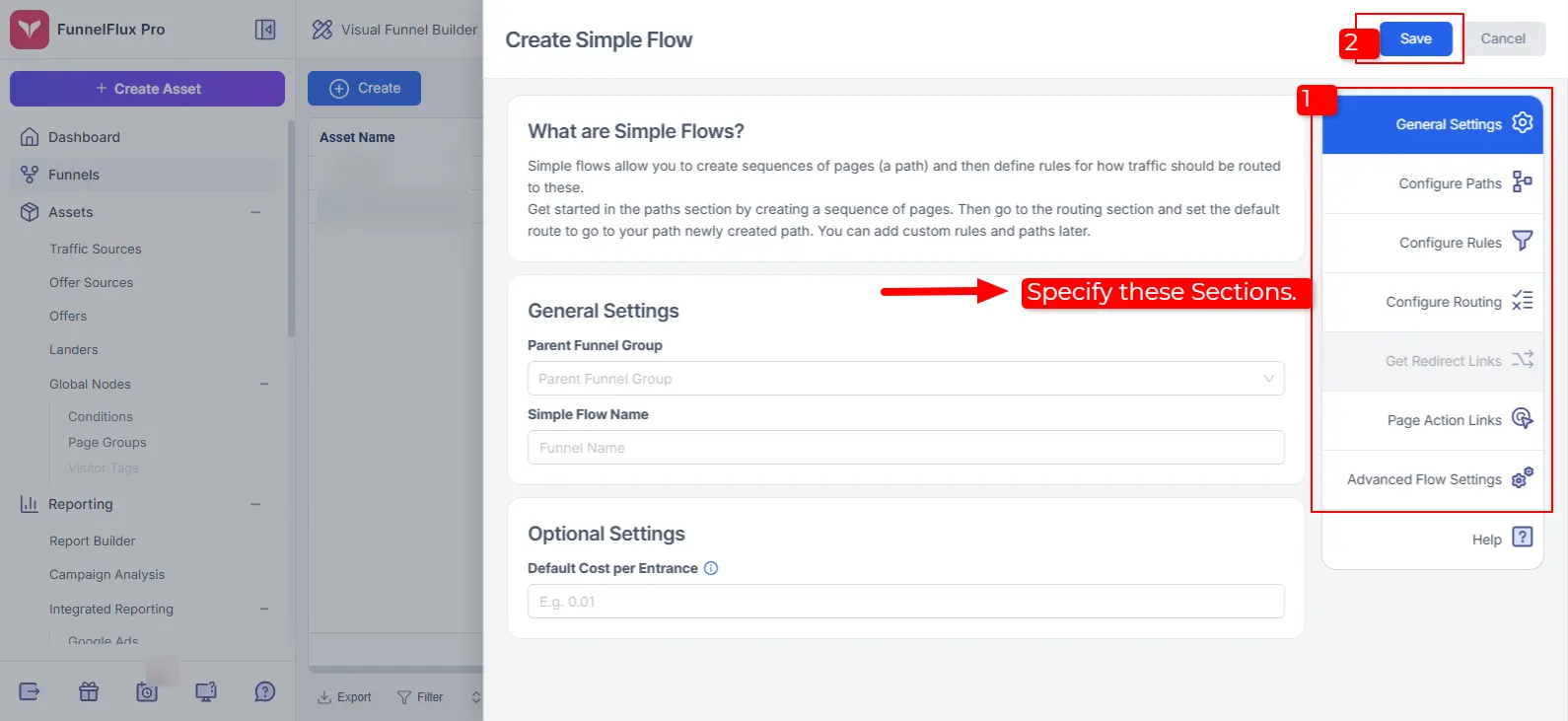
Specify Parent Funnel Group and
Simple Flow Name in the
General Settings.
-
Proceed to Configure Paths, Rules, and Routing details.
-
Set Page Action Links.
-
In the Advanced Flow Settings section, select
7SearchPPC as your traffic source.
-
Click the Save button.
Your FunnelFlux campaign has been configured. Now, to copy
the Tracking URL, follow these steps.
-
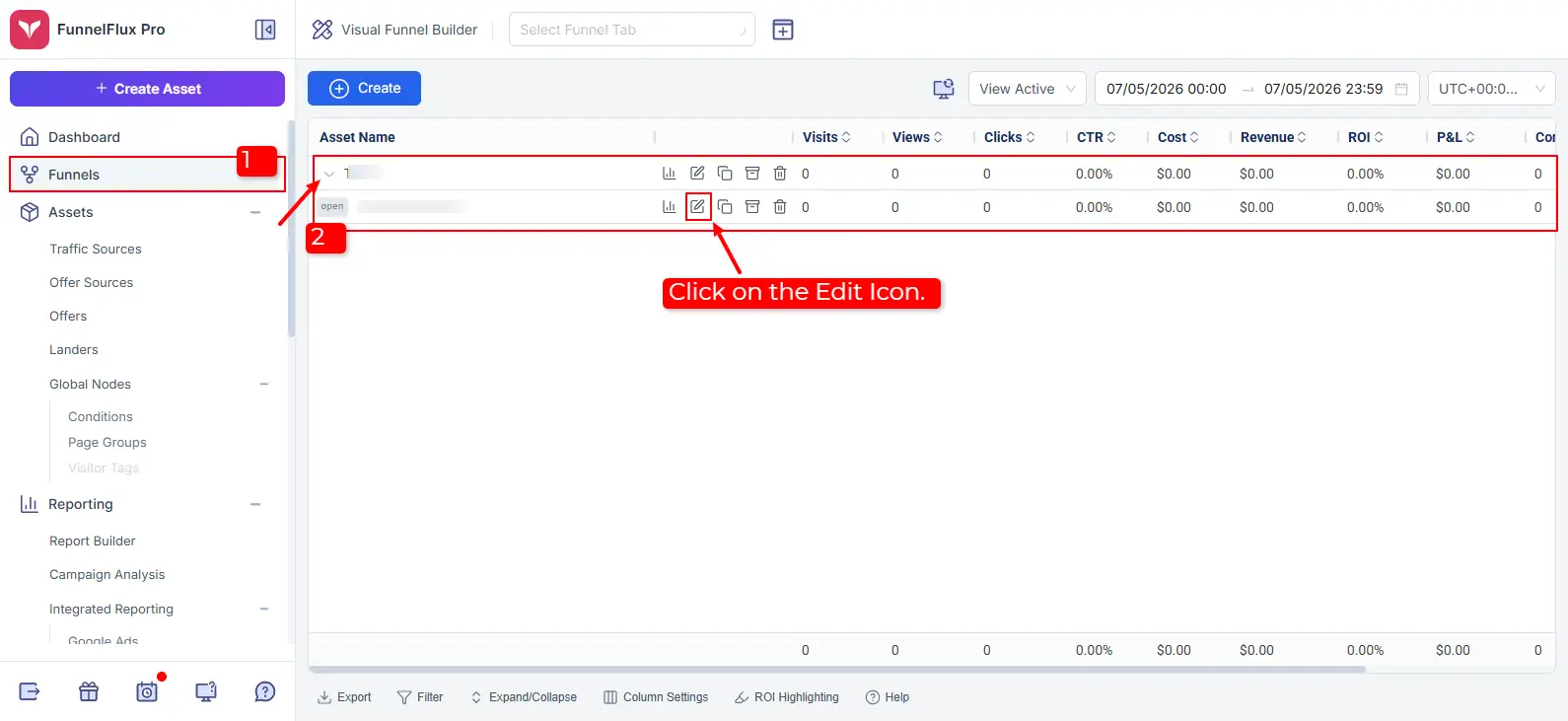
Select Funnels from the side navigation.
-
Choose your Asset.
-
Now, click on the Arrow and then on the
Edit icon.
-
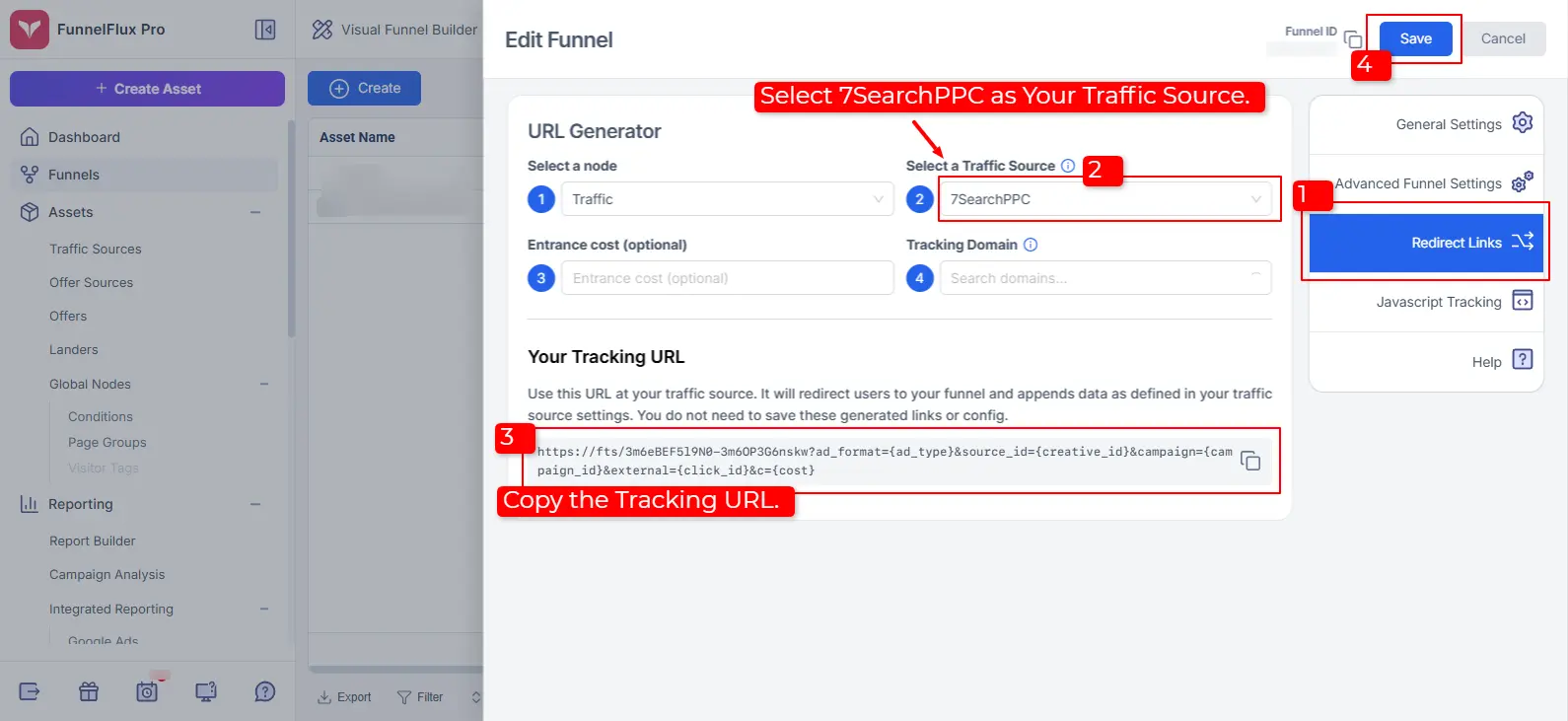
Click on the Redirect Links tab from the right
navigational panel.
-
Select 7SearchPPC as your traffic source.
-
Enter the remaining details.
-
Copy the Tracking URL and then click the
Save button.
Step 7: Test Your S2S Conversion Setup in 7SearchPPC
To ensure the integration between the platforms is configured correctly,
perform a conversion test using the following steps.
-
Go to your 7SearchPPC advertiser account.
-
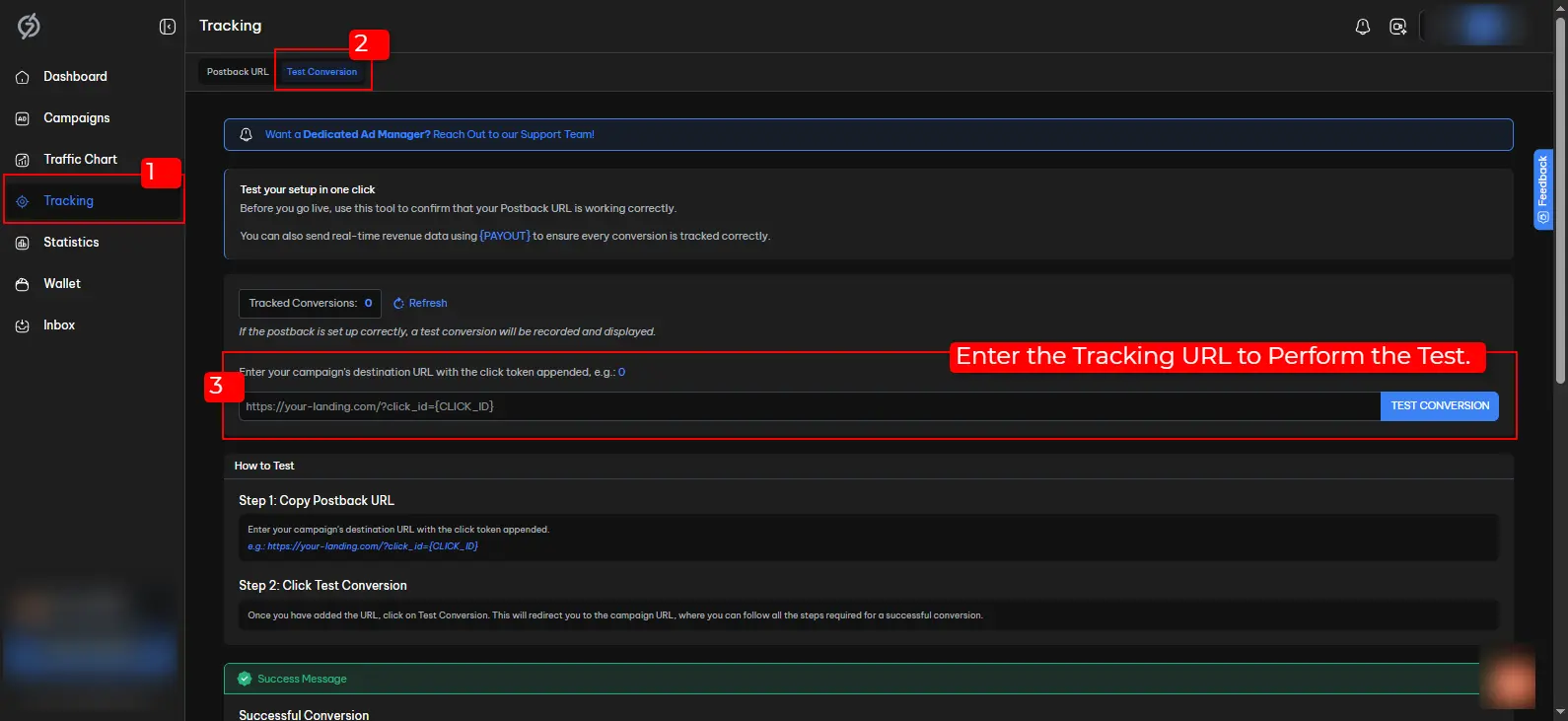
Select the Tracking tab from the left navigational panel.
-
Click on the Test Conversion tab.
-
Paste the Tracking URL you’ve copied from
FunnelFlux into the
Test Conversion field.
-
Click on the Test Conversion button to initiate the
conversion test.
When you click on the test conversion button, you’ll be redirected to the
conversion page, where you need to either complete a simple sign-up,
download, or purchase.
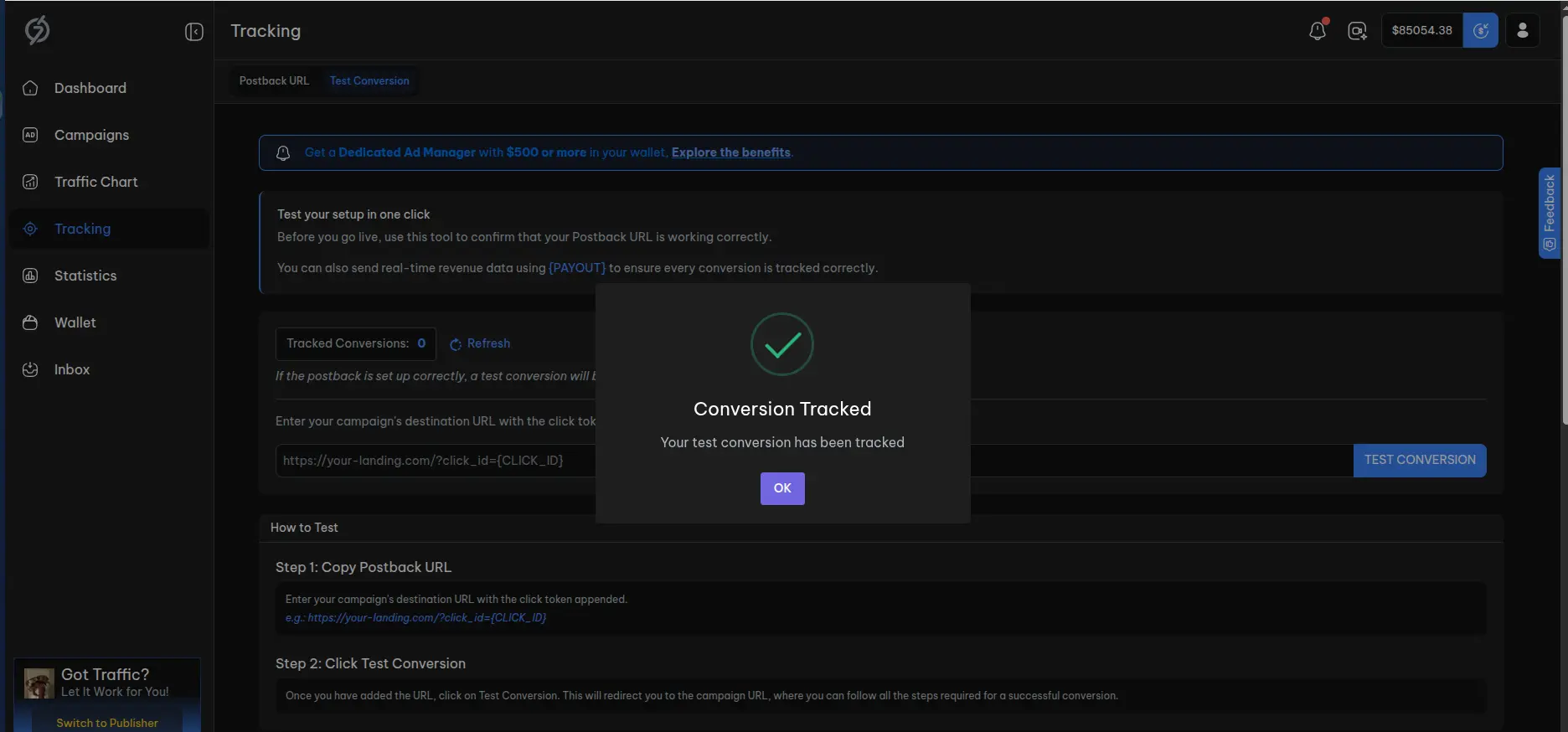
After completing the required conversion, navigate back to your
7SearchPPC advertiser account and open the
Tracking page. If the S2S Postback integration between the
platforms is configured correctly, the conversion will be recorded and
displayed on the Tracking Panel.
* Conversions between the platforms are recorded in real time, but if the
result isn’t visible, wait 2-3 minutes and then refresh the page. If you
encounter any difficulties, you can contact our support.
Step 8: Create and Launch Your Ad Campaign on 7SearchPPC
Launch your ad campaign on 7SearchPPC using the tracking URL
you've copied from FunnelFlux. To do so, use the following steps.
-
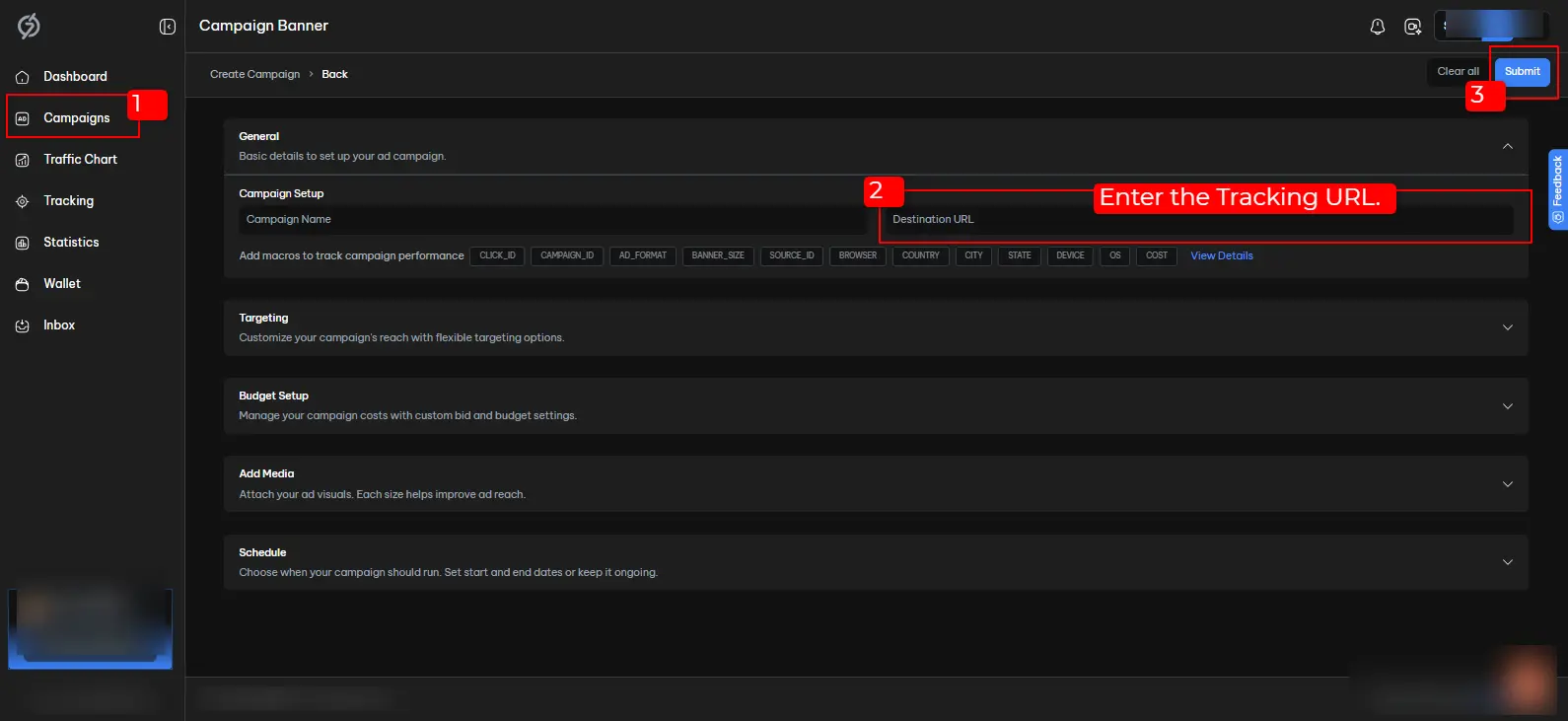
Select Campaigns from the side panel, and then click
on the Create button located at the top-right corner of
the screen.
-
Choose an Ad Format, and click the
Start button.
-
Paste the Tracking URL you’ve copied from
FunnelFlux into the
Destination URL field.
-
Fill out your campaign details.
-
Review the campaign entries, and then click on the
Submit button to send your campaign for approval.
If the campaign is approved, you will receive a confirmation message at your
registered email address. In most cases, the message is sent within
24 working hours.
Benefits of Postback Integration With FunnelFlux
The Postback integration partnership between 7SearchPPC and
FunnelFlux provides several benefits. Some of them are listed below:
-
Real-Time Campaign Performance Tracking:
Advertisers can monitor their campaign KPIs in real time to evaluate
performance and make data-driven advertising decisions.
-
Improves Compliance With Privacy Regulations:
Advertisers can track and retarget potential visitors without relying on
third-party cookies and ensure compliance with customer privacy regulations.
-
Improves Attribution Across the Funnel:
S2S tracking reduces data loss caused by browser restrictions and cookie
limitations, leading to more accurate conversion attribution throughout
the funnel.
-
Optimizes Traffic Quality and Ad Spend:
Advertisers can filter out low-performing traffic sources to stop
investing time and money on them and increase overall ad ROI.

 Log in to Manage Your Account


